> ## Documentation Index
> Fetch the complete documentation index at: https://docs.dune.com/llms.txt
> Use this file to discover all available pages before exploring further.
# DBeaver
> Connect Dune to DBeaver for direct SQL access
Follow these steps to connect Dune as a data source in DBeaver.
## Add a Database Connection
In DBeaver, click the New Database Connection button. It usually looks like a plug with a plus on it.
You'll be taken to the "Connect to a database" screen. Find and select Trino from the list of accepted databases, then click on it.
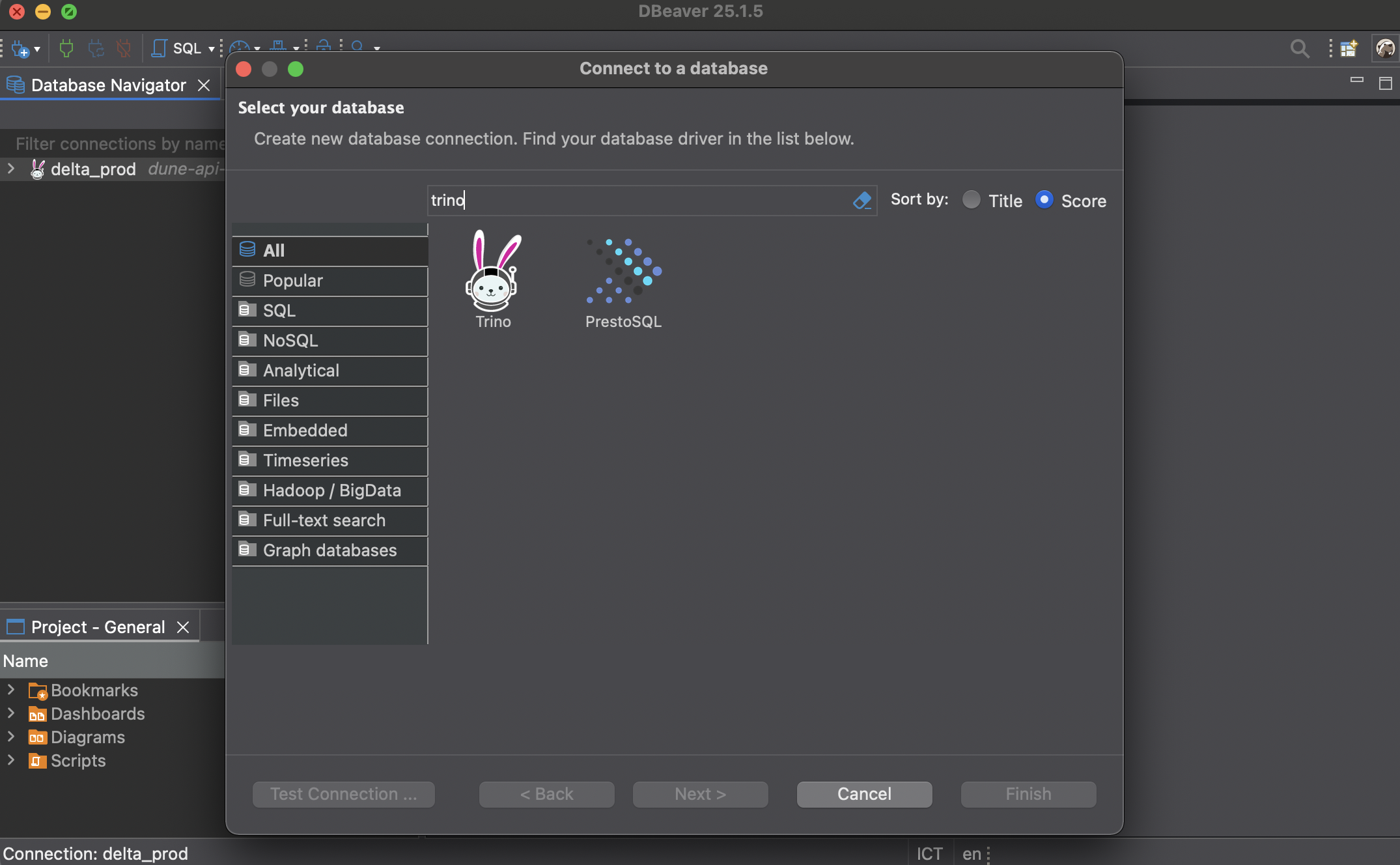 You'll be taken to a screen where you can fill in your connection details. Make sure to click Connect by host, then fill in the connection parameters using the values from the [Connection Parameters](/api-reference/connectors/trino/overview#connection-parameters) section.
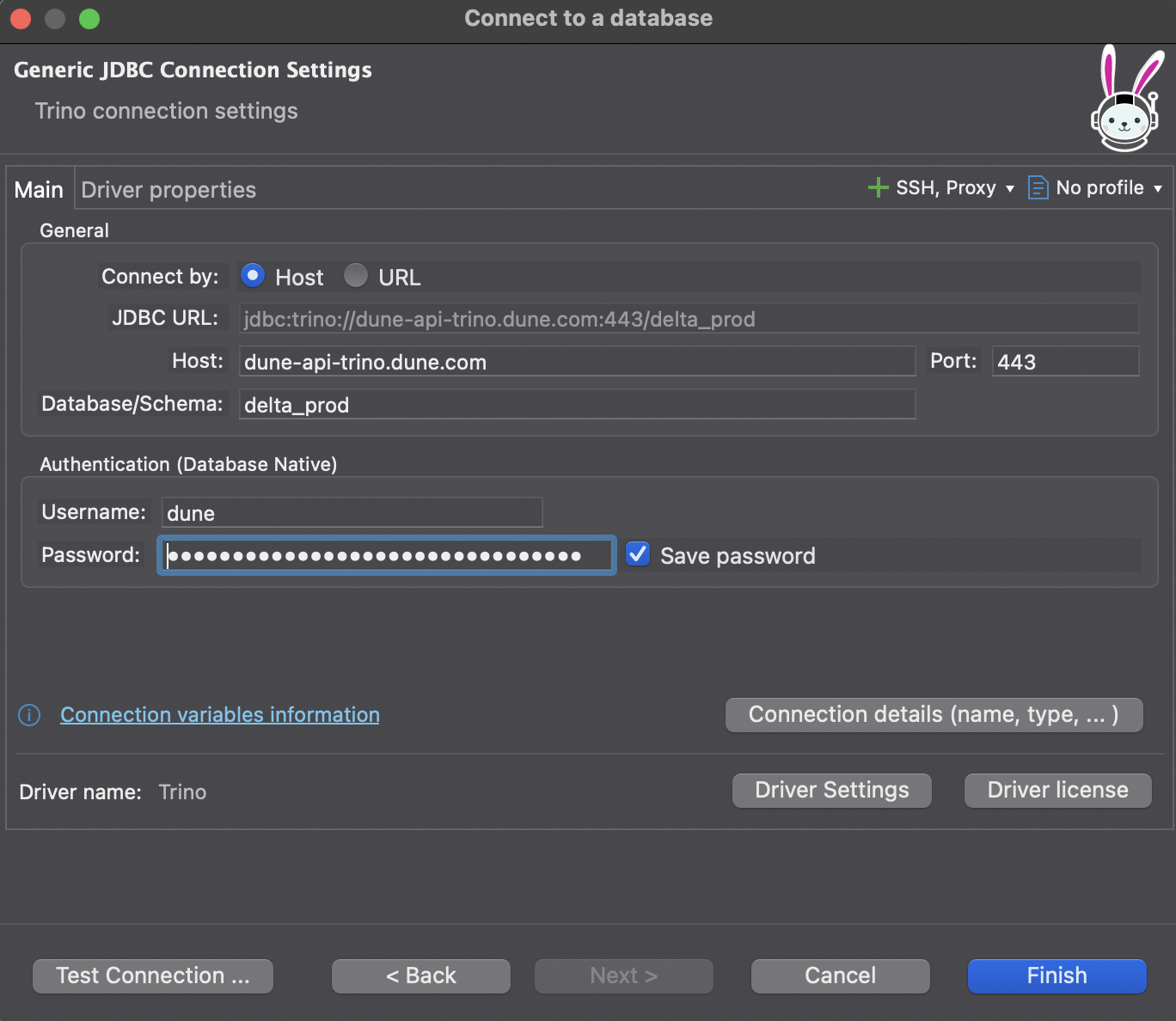 Once you have all the details filled out properly, click Finish to create the connection.
## Run a Test Query
After configuring your connection, you can run a query to verify that everything is working.
Right-click on your Dune database connection and navigate to the SQL Editor section. This will open up a new SQL editor.
In the SQL editor, you can write all of your Dune-compatible SQL. Paste the example query below into the editor.
Click the Run button to execute your script. If everything went well, you will see the results displayed in the results panel.
Once you have all the details filled out properly, click Finish to create the connection.
## Run a Test Query
After configuring your connection, you can run a query to verify that everything is working.
Right-click on your Dune database connection and navigate to the SQL Editor section. This will open up a new SQL editor.
In the SQL editor, you can write all of your Dune-compatible SQL. Paste the example query below into the editor.
Click the Run button to execute your script. If everything went well, you will see the results displayed in the results panel.
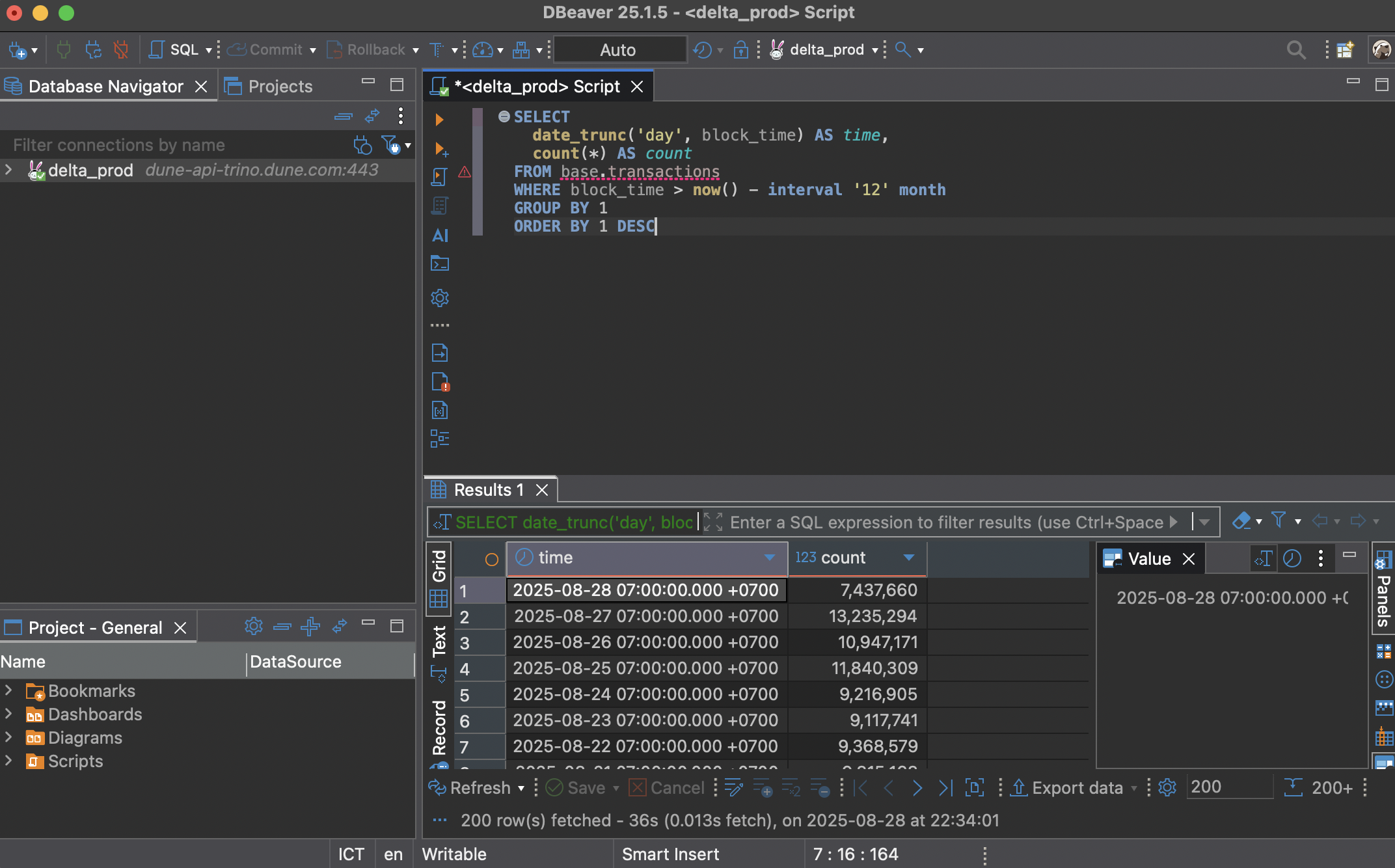 You can use this query to test your connection. It fetches the daily transaction count from the last year on Base.
```sql theme={null}
SELECT
date_trunc('day', block_time) AS time,
count(*) AS count
FROM base.transactions
WHERE block_time > now() - interval '12' month
GROUP BY 1
ORDER BY 1 DESC
```
You can use this query to test your connection. It fetches the daily transaction count from the last year on Base.
```sql theme={null}
SELECT
date_trunc('day', block_time) AS time,
count(*) AS count
FROM base.transactions
WHERE block_time > now() - interval '12' month
GROUP BY 1
ORDER BY 1 DESC
```