> ## Documentation Index
> Fetch the complete documentation index at: https://docs.dune.com/llms.txt
> Use this file to discover all available pages before exploring further.
# Metabase
> Connect Dune to Metabase for BI dashboards
Follow these steps to connect Dune as a data source in Metabase.
## Add the Database Connection
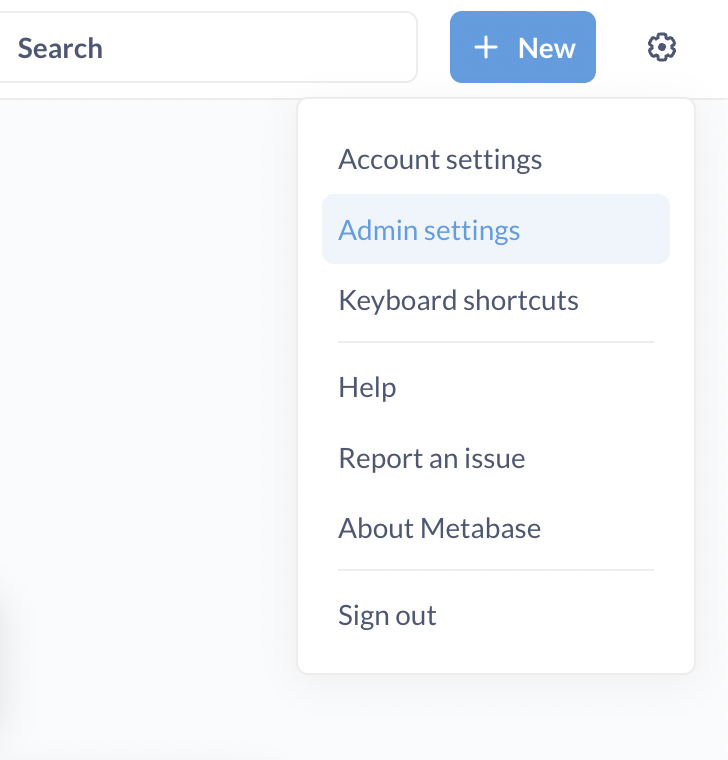
From the Metabase home page, click the Settings gear icon in the top-right corner.
Select Admin settings from the dropdown menu.
 In the Admin panel, navigate to the Databases tab.
 Click the blue Add database button to open the configuration modal.
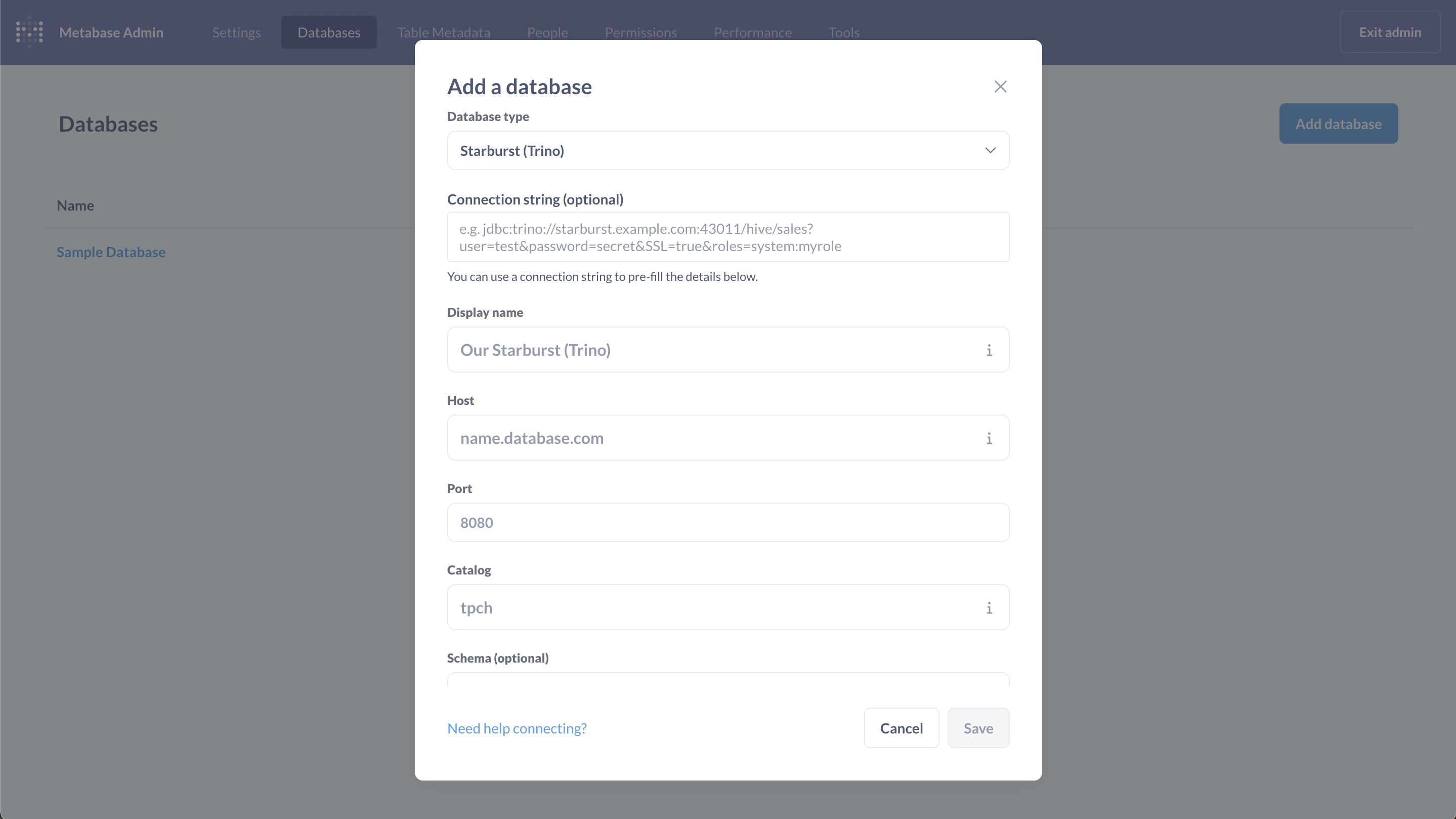 In the modal, select
 Starburst (Trino) as the Database type.
Fill in the form fields using the values from the [Connection Parameters](/api-reference/connectors/trino/overview#connection-parameters) section.
For best performance in Metabase, we recommend disabling Rerun queries for simple explorations and Periodically refingerprint tables in the advanced settings.
Schema discovery queries such as SHOW TABLES or SHOW SCHEMAS may not be available in Metabase with this connector because Dune's catalog spans millions of tables. Many BI tools are not yet optimized to enumerate catalogs at this scale. An update with improved schema discovery is planned for the future.
## Run a Test Query
After configuring and saving the connection, you can run a query to verify that everything is working.
Click the + New button and select SQL query.
In the editor, choose your newly created Dune SQL data source from
the Select a database dropdown.
Paste the example query below into the editor.
Run the query to verify the connection.
You can use this query to test your connection. It fetches the daily transaction count from the last year on Base.
```sql theme={null}
SELECT
date_trunc('day', block_time) AS time,
count(*) AS count
FROM base.transactions
WHERE block_time > now() - interval '12' month
GROUP BY 1
ORDER BY 1 DESC
```