> ## Documentation Index
> Fetch the complete documentation index at: https://docs.dune.com/llms.txt
> Use this file to discover all available pages before exploring further.
# Counters
> Display a single key metric prominently using counter visualizations.
## Counters
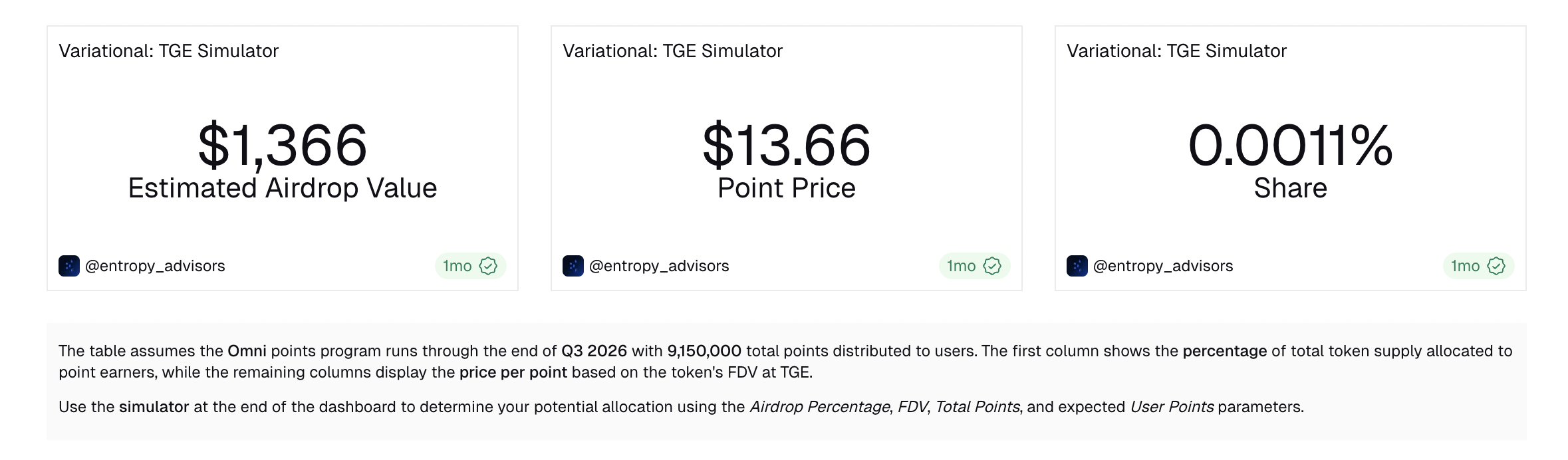
Counters are a great way to provide your audience with immediate "on a glance" stats.
 ### Configuring your Counter
 #### Counter options
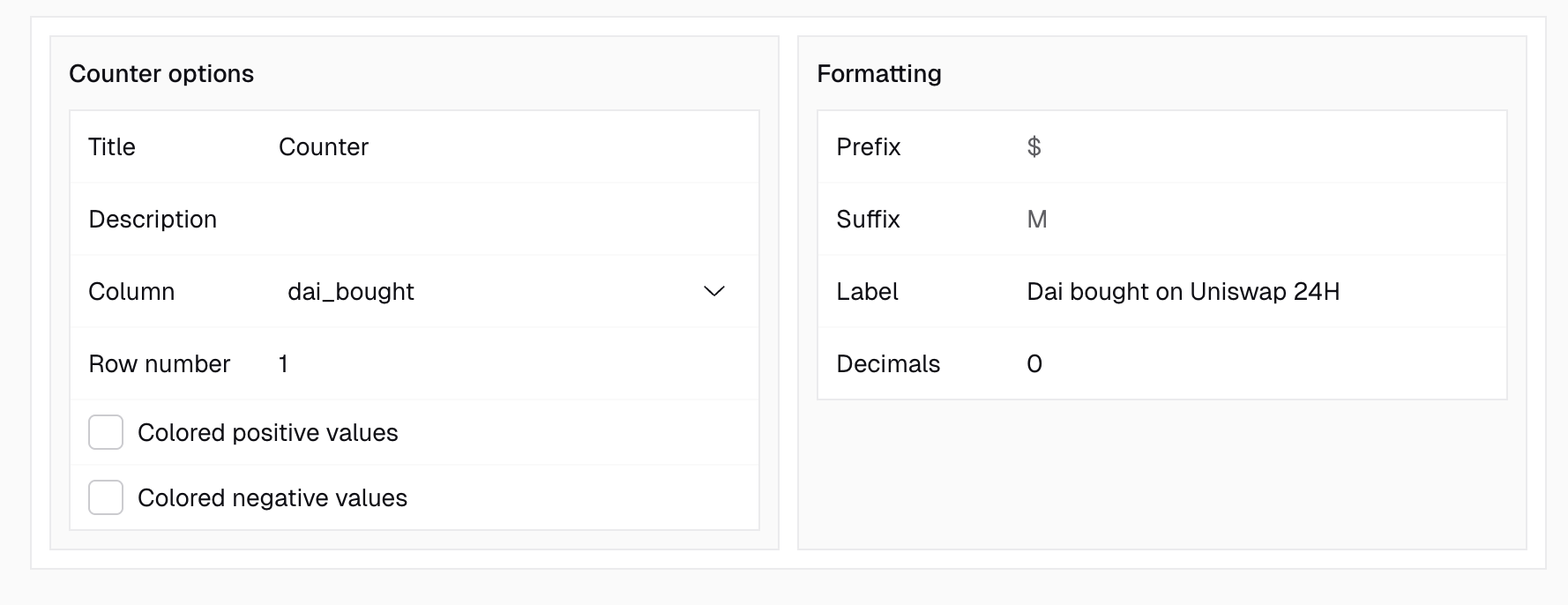
In this section you can define what kind of data the counter should display:
* The Title will appear in all instances of this graph prominently at the top.
* If left blank, the Query name will be the only thing that is left standing.
* In this field, you can define which column the counter should show.
* This field can be used to define which row of the underlying data table you want displayed, e.g., row 1.
* Usually, this requires you to sort or limit your Query results in order for row 1 to show the wanted results.
#### Formatting
This section is where you can adjust how your numerical data is displayed.
* This field allows you to define a prefix for your counter value.
* e.g.: `$`, `€`, `Ξ`, `฿`
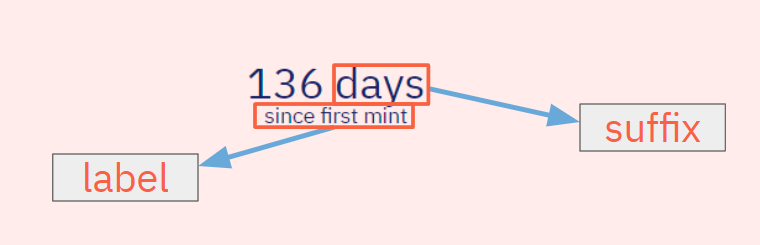
* This field allows you to define a suffix for your counter value.
* This field allows you to define a label for your counter value.
* The label will appear beneath the counter value as text.
* In this field, you can choose how many decimals you want displayed for your counter.
#### Counter options
In this section you can define what kind of data the counter should display:
* The Title will appear in all instances of this graph prominently at the top.
* If left blank, the Query name will be the only thing that is left standing.
* In this field, you can define which column the counter should show.
* This field can be used to define which row of the underlying data table you want displayed, e.g., row 1.
* Usually, this requires you to sort or limit your Query results in order for row 1 to show the wanted results.
#### Formatting
This section is where you can adjust how your numerical data is displayed.
* This field allows you to define a prefix for your counter value.
* e.g.: `$`, `€`, `Ξ`, `฿`
* This field allows you to define a suffix for your counter value.
* This field allows you to define a label for your counter value.
* The label will appear beneath the counter value as text.
* In this field, you can choose how many decimals you want displayed for your counter.